



Windows Server User Cal Vs Device Cal Difference How To Choose: Best Essential Guide

Understanding the windows server user cal vs device cal difference how to choose is one of the most frustrating hurdles when setting up a new IT infrastructure for your business. If you have ever stared at a Microsoft licensing invoice wondering why your software costs suddenly doubled, you are definitely not alone. Choosing the wrong Client Access License model can lead to unexpected compliance audits or broken user connections when you hit hidden limits. Let us walk through the exact mechanics of how these licenses operate under the hood, how to audit your current active directory environment, and how to pick the right option without wasting your company budget.
Table of Contents
Understanding Windows Server CALs
When you purchase a Windows Server operating system, the base software package only gives you the right to run the server itself. It does not automatically grant human beings or physical hardware the right to connect to it. That is where Client Access Licenses come into play. Microsoft separates the server software from the access rights to maintain scalable pricing. If your team relies on official documentation to stay compliant, you can read more directly on the Microsoft Learn portal for official licensing guidelines.
Failing to track these licenses properly can cause severe administrative headaches. When Remote Desktop Services or file shares suddenly start rejecting connections with licensing errors, your network grinds to a halt. To prevent this, system administrators need to look at how their specific workforce interacts with the infrastructure every single day.
User CALs vs Device CALs: The Core Mechanics
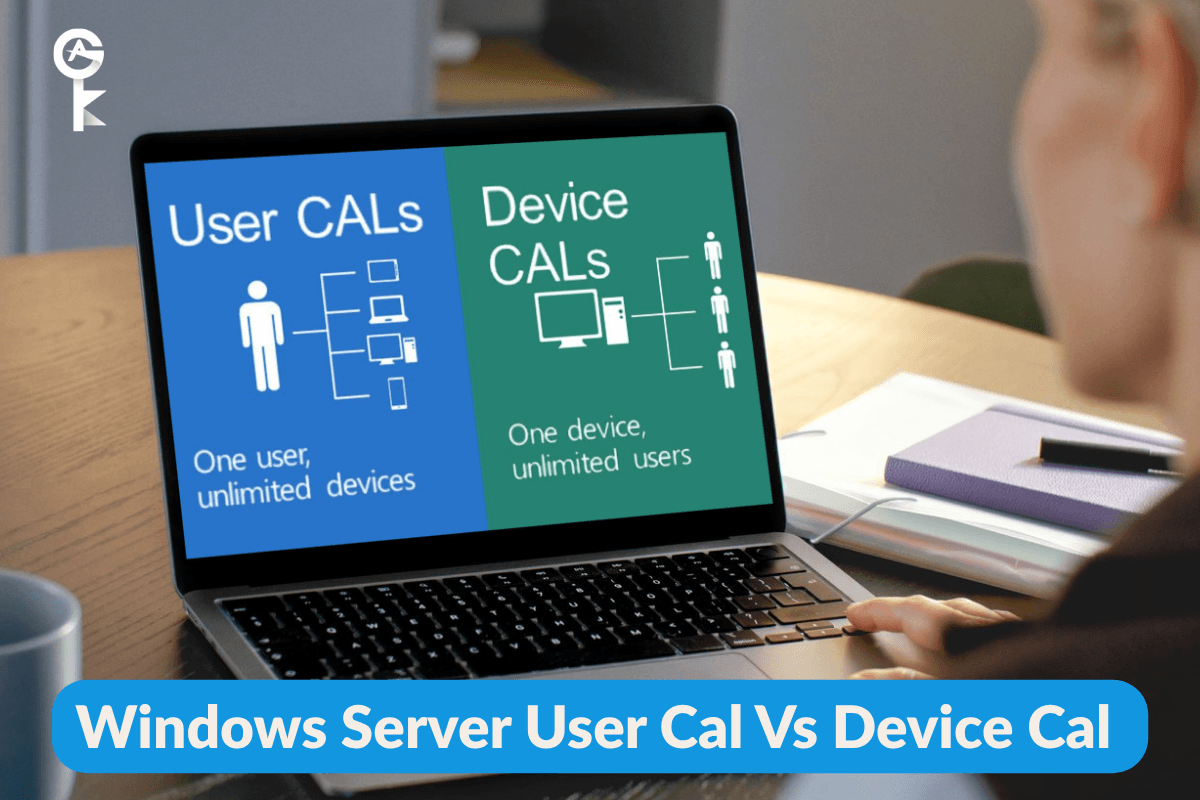
The fundamental windows server user cal vs device cal difference how to choose boils down to a simple question: Are you licensing the person or the machine? A User CAL assigns a specific access right to an individual human being. That single person can connect to your Windows Server environment from a desktop at the office, a laptop at home, or even a smartphone on the road, all using that exact same single license.
On the flip side, a Device CAL ties the license to a physical piece of hardware. Any number of human beings can share that specific computer and access the server, but that computer is the only one permitted to make the connection. If a temporary worker sits at that desk today and a full-time employee sits there tomorrow, they both share that single Device CAL seamlessly.
Browse Microsoft Servers Licenses
Auditing Active Connections with PowerShell
Before you make a purchasing decision, you need hard data on how many users and devices currently touch your network. Relying on guesswork will only lead to overspending or compliance failures. You can run native PowerShell commands directly on your domain controller to evaluate your current active user base and resource consumption.
Open your PowerShell console with administrative privileges and execute the following command to pull a complete list of enabled user accounts in your domain:
Get-ADUser -Filter 'Enabled -eq $true' -Properties Name, SamAccountName | Select-Object Name, SamAccountName | Export-Csv -Path C:\temp\ActiveUsers.csv -NoTypeInformationIf you suspect that your windows server user cal vs device cal difference how to choose strategy should lean toward hardware-based licensing, you also need to check the number of domain-joined workstations. Run this command to list your active computer objects:
Get-ADComputer -Filter 'Enabled -eq $true' -Properties Name, OperatingSystem | Select-Object Name, OperatingSystem | Export-Csv -Path C:\temp\ActiveDevices.csv -NoTypeInformationHow to Choose the Right License
Making the final call requires analyzing your staffing patterns and hardware ratios. If your employees use multiple devices throughout the day, such as a desktop at work, a laptop during travel, and a tablet at home, User CALs are almost always the most cost-effective and logical choice. For further reading on corporate software asset management, check out insights from Gartner to optimize your IT spending framework.
Conversely, if you run a shift-based environment where multiple workers share a single workstation (like call centers, retail POS terminals, or hospital nursing stations), Device CALs will save you a tremendous amount of money. You only need to buy one license per physical terminal rather than buying a license for every single person who rotates through that chair.
Final Recommendations
Navigating the windows server user cal vs device cal difference how to choose dilemma doesn’t have to be an administrative nightmare. Always audit your real-world environment using automated scripts before signing any purchase orders. Match your licensing model directly to your operational workflow, keeping employee device counts and shift rotations in mind. Getting this right the first time ensures your business stays legally compliant, fully operational, and financially optimized for years to come.


