


How to Download and Activate Office 2019 and 2016 for PC

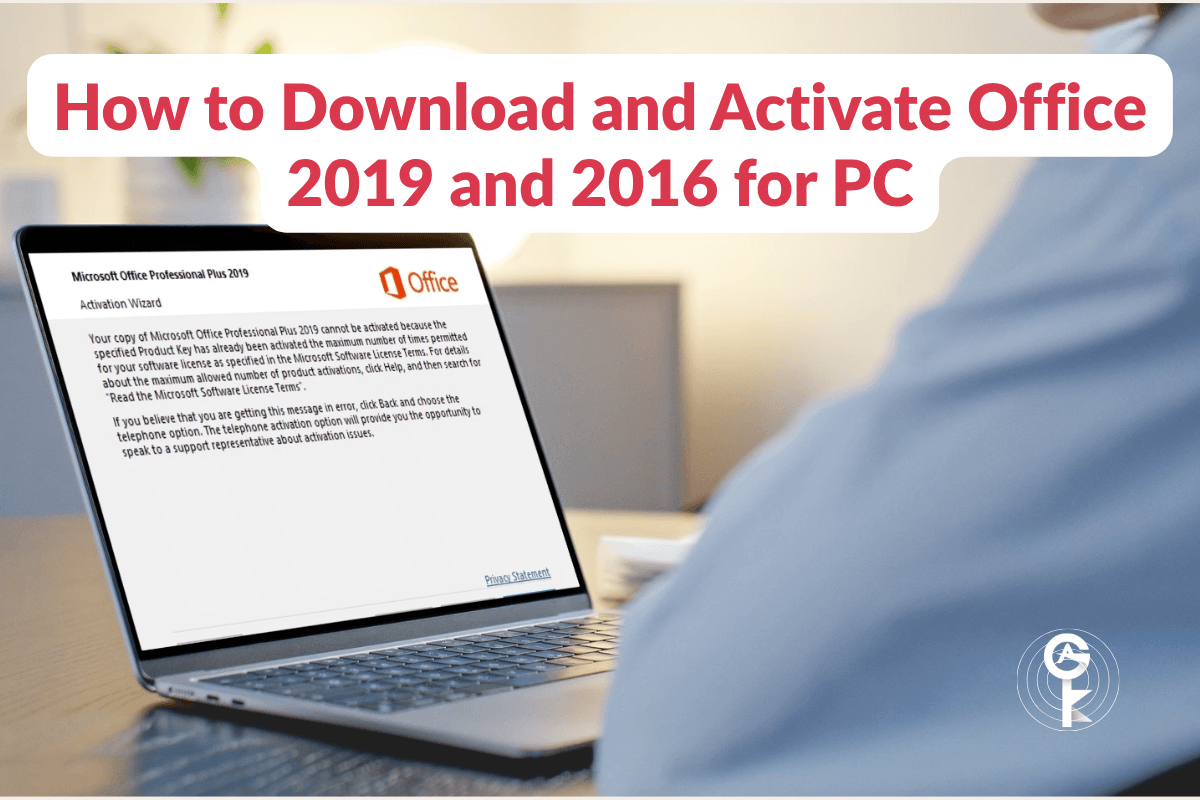
When you purchase an Office 2016 or 2019 product key for PC from All Good Keys, you will use Microsoft’s official setup page to verify your key and securely download your software.
Follow this step-by-step guide to download, install, and activate your Office apps.
Step 1: Download Your Software
Your order confirmation email contains your 25-character activation key. Keep that handy and follow these steps:
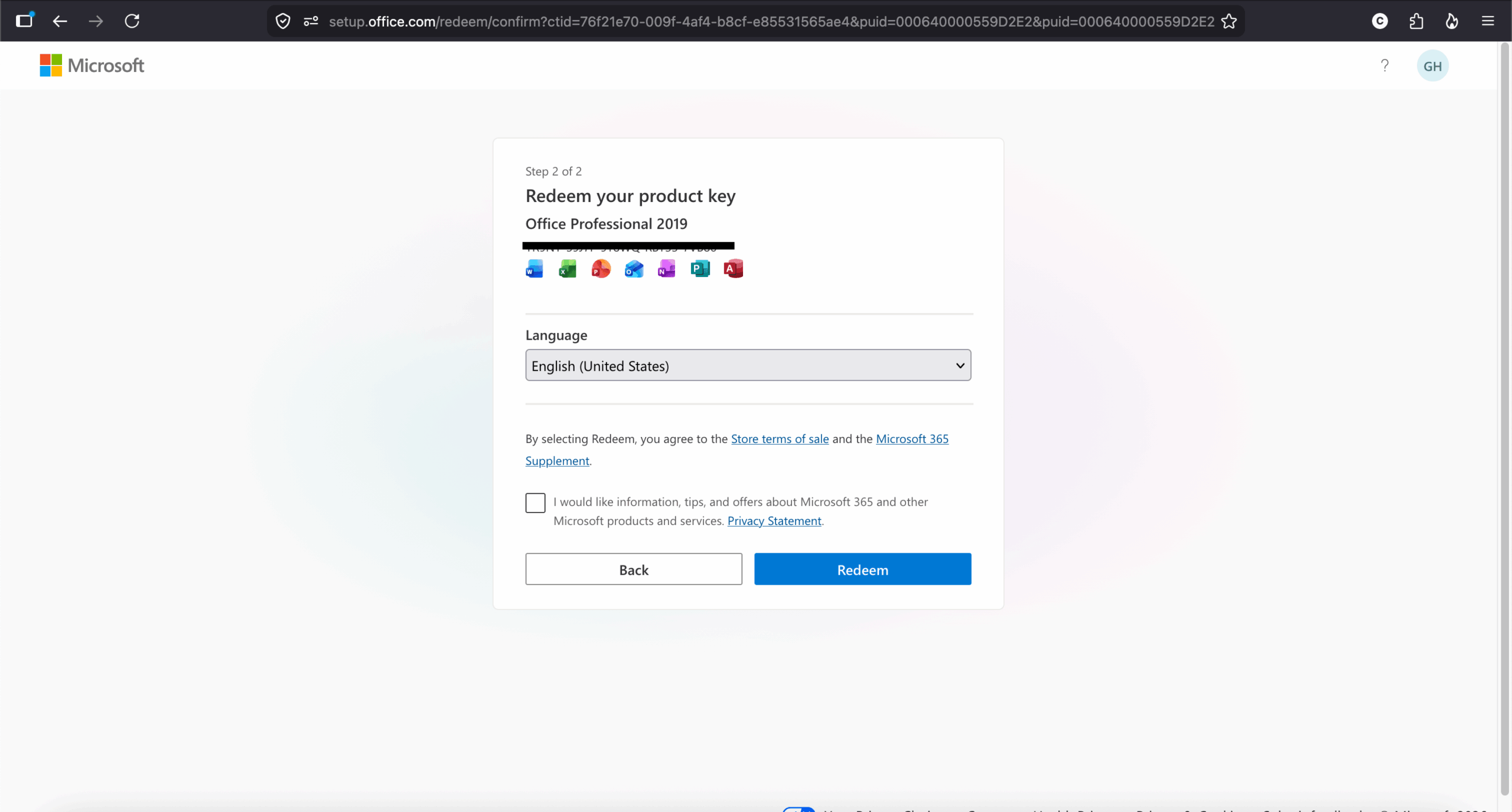
- Open your web browser and go to: https://setup.office.com/downloadoffice/
- Login to your existing Microsoft account, or register for a new one if you don’t have one. Click the blue Get started button.
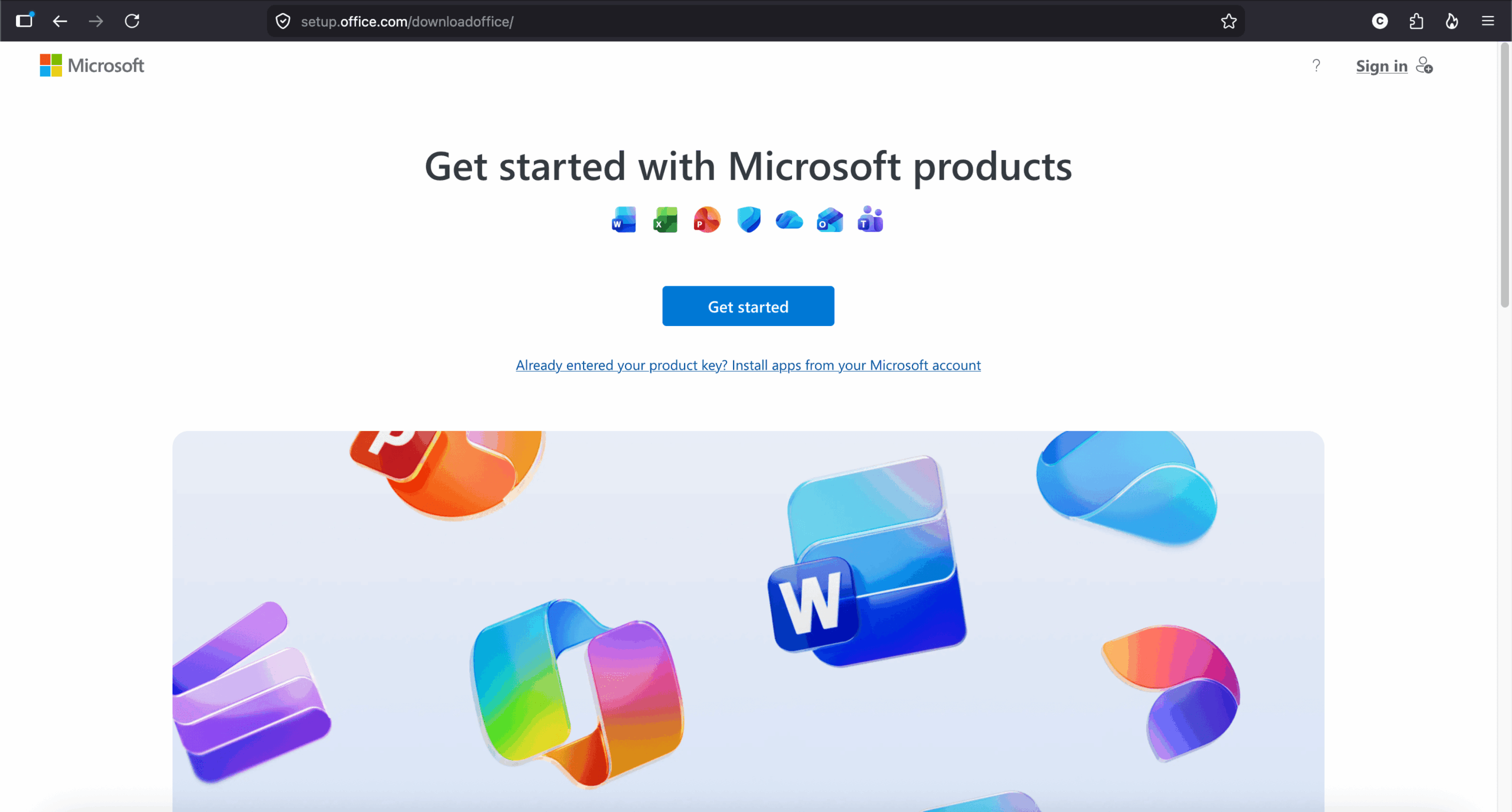
- Enter your 25-character activation key exactly as it appears in your email and click Next.
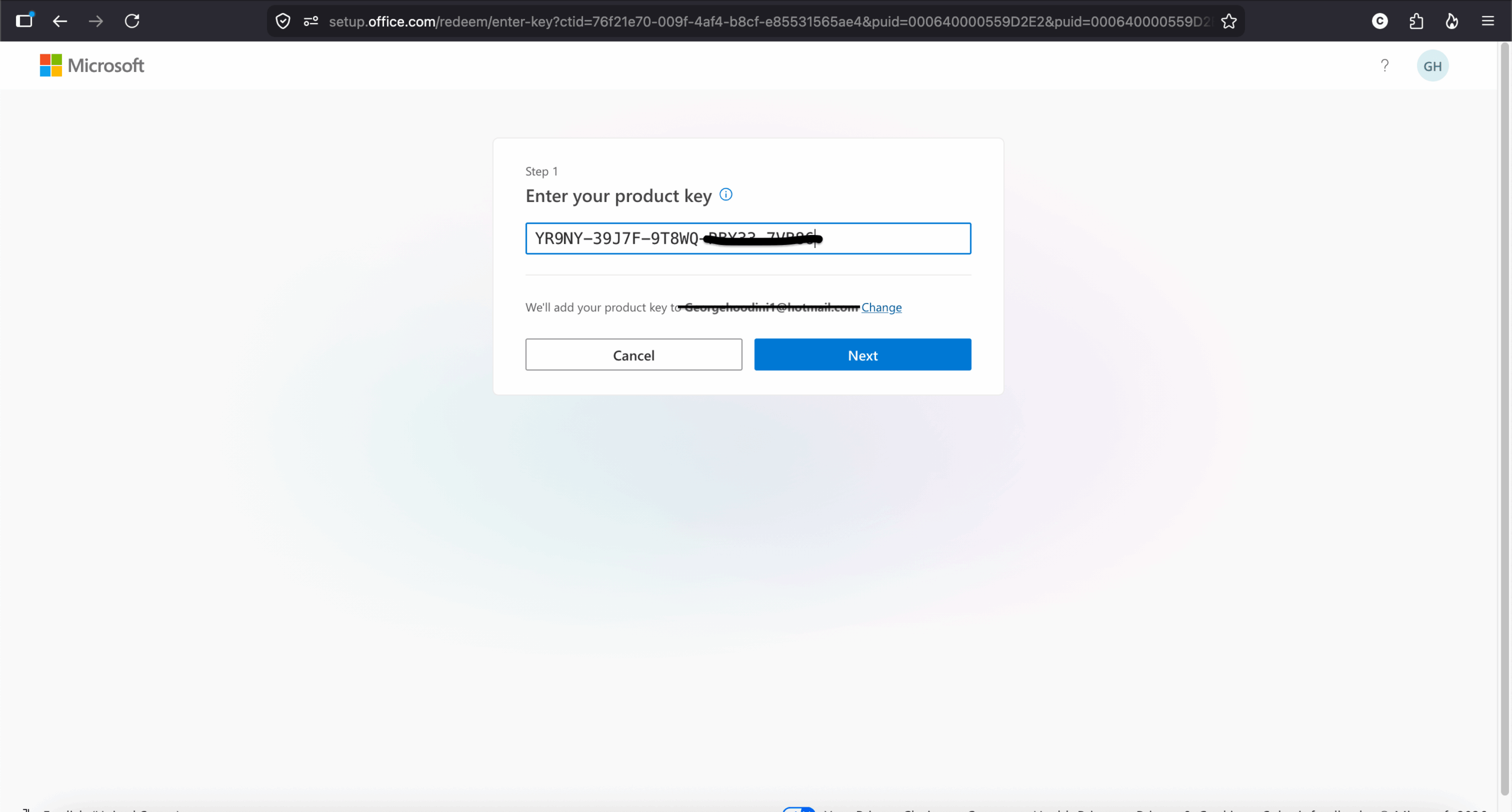
- Select your preferred language from the dropdown menu and click Redeem to save the Office installer to your computer.
Step 2: Install Office
- Locate the setup file you just downloaded (usually in your Downloads folder) and double-click it to run the installer.
- Follow the on-screen prompts and wait for the installation to finish completely.
- Close the setup window once it says Office is installed.
Step 3: Finalize Activation
- Open the Start Menu, search for an Office app like Word or Excel, and open it.
- Accept the license agreement if prompted.
- The Microsoft Activation Wizard should appear. Select the option that says “I want to activate the software over the Internet” and click Next.
- If successful, your product is ready to use! You can verify this by going to File > Account and looking for “Product Activated.”
Troubleshooting: Telephone Activation
Getting a “Maximum Activations Reached” Error?
If you select internet activation and get an error stating the key has reached its maximum allowed activations, don’t worry! This is a standard security prompt for these specific license types and just requires a quick manual verification.
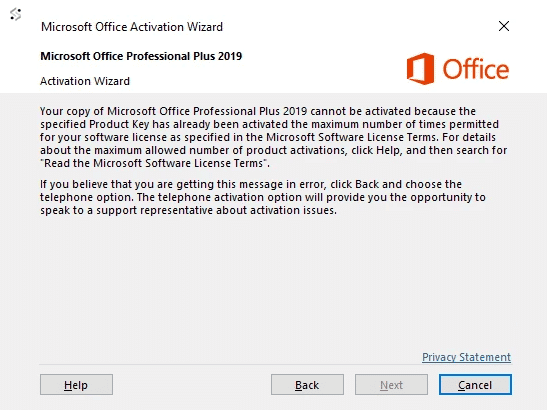
- Click Back on the Activation Wizard.
- Choose the second option: “I want to activate the software by telephone” and click Next.
- Select your country from the drop-down menu.
- You will see a long Installation ID (a series of numbers) generated on your screen.
- You do not actually need to call Microsoft! Simply go to our website and click the Get Confirmation ID Online link in our website footer.
- Enter your Installation ID into the tool to receive your Confirmation ID.
- Type the Confirmation ID into the empty blocks in the Activation Wizard and click Next to permanently activate your software.
Still Having Trouble?
If you encounter any issues downloading your software or if your key is showing an error, our technical support team is here to help! Please don’t hesitate to reach out to us at support@allgoodkeys.com with a screenshot of your issue, and we will get it sorted out for you.


