



Reset Rds Grace Period Windows Server 2022 (Best Guide)

If you are reading this, chances are your users are suddenly locked out of their remote sessions with licensing error messages popping up everywhere, meaning it is time to reset rds grace period windows server 2022 before productivity completely grinds to a halt. As a systems administrator, seeing that dreaded 120-day licensing countdown expire is stressful, but the fix is entirely within your control if you know your way around the registry and PowerShell. Let us walk through the exact, native steps to reclaim your Remote Desktop Services environment without buying unnecessary licenses prematurely, and get your team back to work.
Table of Contents
Understanding the RDS Grace Period Error
Windows Server gives you a built-in 120-day trial period for Remote Desktop Services to evaluate the role before you officially configure a licensing server. When this clock hits zero, connection attempts get rejected, leaving users staring at black screens or authentication timeouts. This is a common architectural hurdle documented heavily in official Microsoft documentation, and bypassing it requires manipulating the specific registry keys that store the licensing ticket milestones.
Before you touch anything, always make sure you have a valid system state backup or a recent virtual machine snapshot. Messing with registry hives can occasionally introduce instability if permissions are not handled carefully. Once you have backed up your server, you will need local Administrator privileges to execute the following registry tweaks and command-line scripts.
Modifying the Registry Safely
The licensing countdown data lives deep inside the Windows Registry. You will need to navigate to the Remote Desktop Licensing paths and clear out the expired hardware tracking entries. Open your start menu, type regedit, and right-click to run it as an administrator to begin the manual cleanup process.
Navigate carefully through the tree structure to find the licensing parameters. The exact key you are looking for houses the timebomb data. If you prefer scripting this action instead of clicking through a graphical user interface, you can manage system parameters using administrative tools or review deployment guidelines on the Microsoft Tech Community portal for best practices.
Locate this specific registry path:
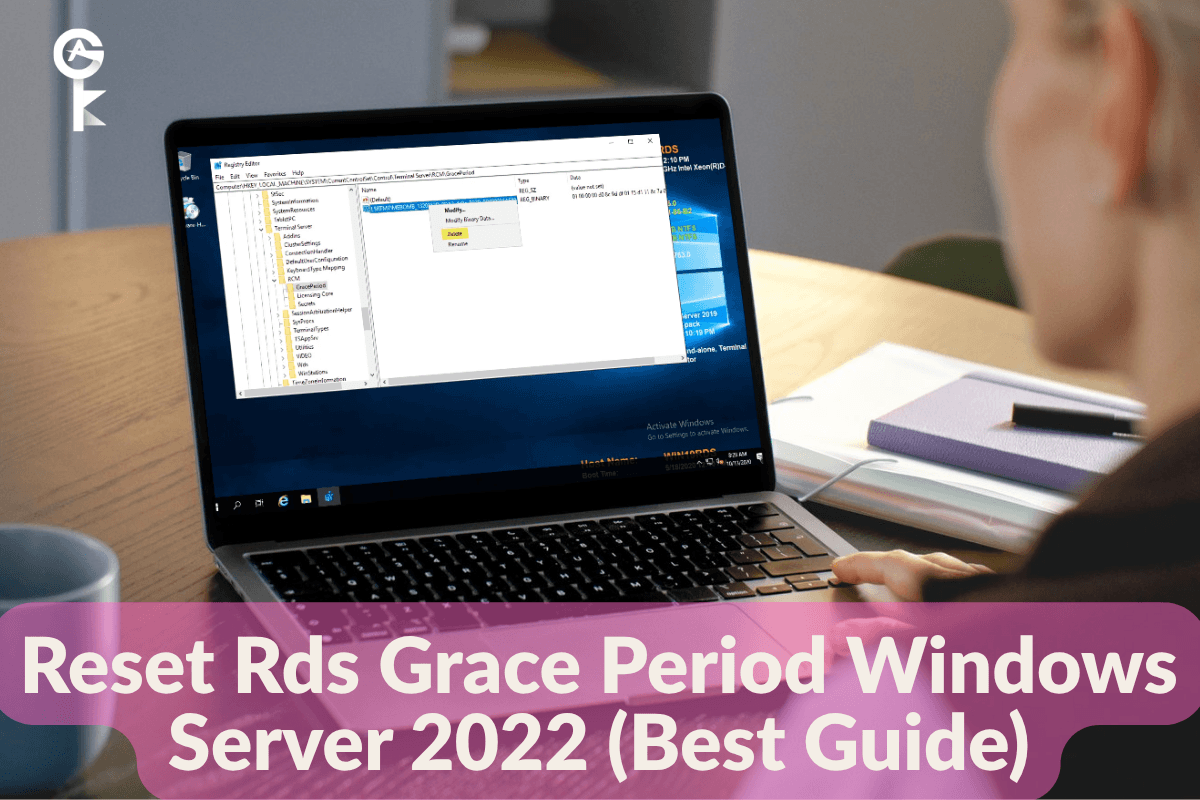
HKEY_LOCAL_MACHINE\SYSTEM\CurrentControlSet\Control\Terminal Server\RCM\GracePeriodBy default, Windows protects this key, meaning you cannot simply delete the entries without first taking ownership and granting yourself full control permissions. Right-click the GracePeriod folder, select Permissions, click Advanced, change the owner to your local Administrator account, and give yourself Full Control. Once permissions are successfully updated, delete or rename the binary values residing inside that folder to effectively wipe the expired clock.
Browse Microsoft Servers Licenses
Resetting via PowerShell and Services
If you prefer a faster approach or need to automate this fix across multiple servers, you can leverage PowerShell combined with Registry commands. Launch an elevated PowerShell console by right-clicking the icon and choosing Run as administrator. This ensures your commands possess the security tokens required to alter core operating system hives.
You can query and manipulate the registry keys directly from the terminal. Execute the following command to strip out the licensing tokens safely:
Remove-ItemProperty -Path "HKLM:\SYSTEM\CurrentControlSet\Control\Terminal Server\RCM\GracePeriod" -Name * -ErrorAction SilentlyContinueAfter clearing out those entries, you must restart the Remote Desktop Services to force the operating system to read a clean slate. Failing to restart the service means the old cached timebomb data will remain active in memory. Run this quick PowerShell snippet to bounce the service cleanly:
Restart-Service TermService -ForceVerifying Your New License State
Now that you have cleared the tracking keys and restarted the core terminal services, it is time to make sure the fix took effect. You can check the status of your remote desktop configuration using built-in diagnostic management tools. Open up a standard Command Prompt as an administrator to run a licensing diagnosis check.
Execute the following command to output your current licensing diagnosis details directly to your terminal window:
lsicCals.exe /diagnoseYou should see that the grace period has successfully reset back to the original 120 days, allowing your team to log back into the server without encountering licensing blockades. Keep in mind that this is a temporary remediation technique designed to buy you time for proper infrastructure planning. For a permanent, production-ready environment, you should always deploy a dedicated Remote Desktop Licensing Server and purchase legitimate Client Access Licenses to stay fully compliant with Microsoft software policies.


