



How To Fix The Activate Windows Watermark On Your Desktop

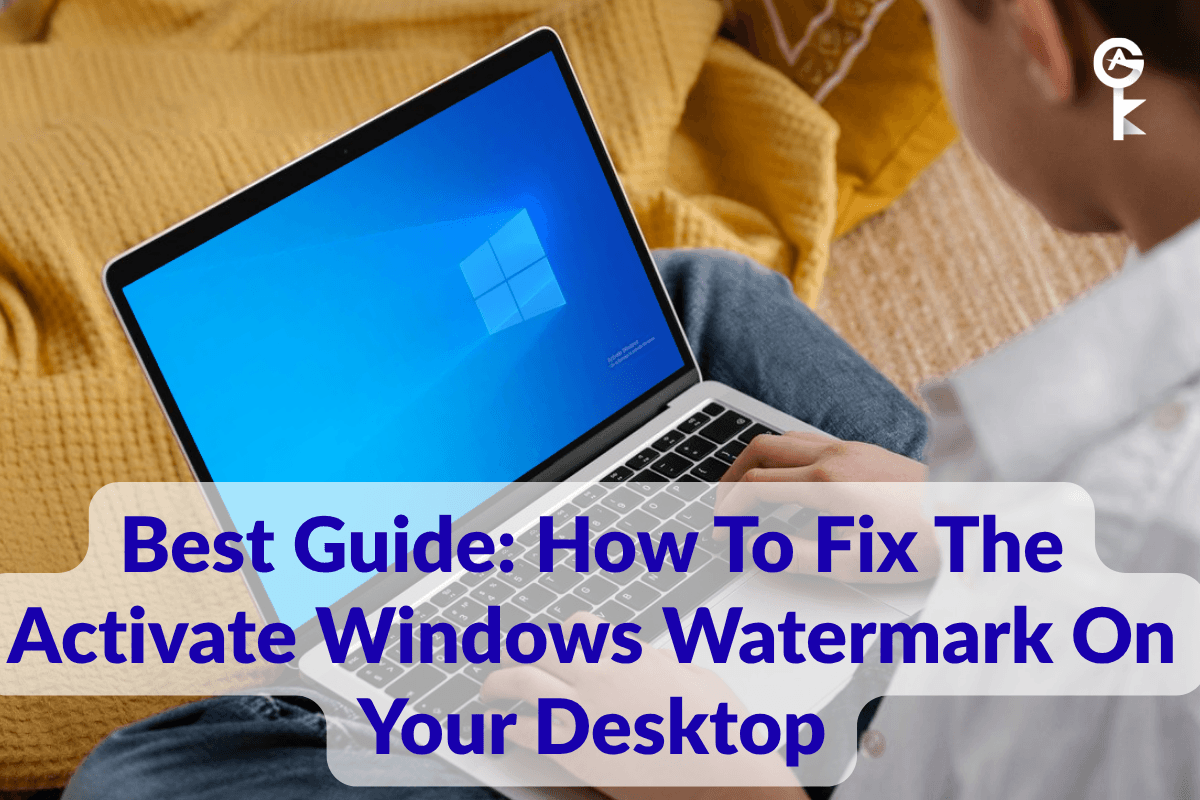
Learning how to fix the activate windows watermark on your desktop is a priority for anyone tired of that persistent, faded text overlaying their background imagery. Operating system trials offer an open door to explore modern interfaces, but leaving your installation unlicensed brings visual annoyances and functional roadblocks. That transparent notification can disrupt full-screen applications, video playback, and creative productivity tools.
Choosing an unactivated state also means missing out on standard desktop customization features like changing system colors or background wallpapers. While many online forums recommend risky shortcuts or registry tweaks to hide the prompt, understanding the underlying licensing requirements is the safest path forward. Let us examine why this text appears and explore the reliable steps required to clear it from your screen permanently.
Table of Contents
Microsoft permits any user to install operating system builds freely for evaluation and setup testing. When you bypass the product key entry screen during initial installation, the software enters a specialized unactivated grace period. To indicate this status without disabling core system operations, the software renders a desktop notification directly on top of your graphic layer.
Before jumping into troubleshooting steps, you should always grab official installation media from the Microsoft Software Download Center to ensure your base operating files are completely clean and unmodified. Running an authentic operating system protects your hardware ecosystem from vulnerabilities while granting full access to personalization panels and stability patches.
Understanding the Unactivated State
The notification on your display functions as a direct reminder that your copy lacks a verified digital license or retail key. Beyond the visual obstruction, unactivated systems restrict standard administrative personalization menus. You cannot swap out lock screen images, adjust accent color schemes, or manage advanced theme configurations until activation completes successfully.
Long-term usage without a valid license can also limit your access to optional cumulative updates and feature rollouts. While core security definitions generally continue to deploy, missing feature updates can leave your workstation vulnerable to modern exploits. Securing a legitimate product key ensures your entire environment remains compliant and fully functional.
Why Quick Registry Hacks Fail
Many users search for batch files or registry adjustments designed to suppress the desktop notification instantly. Modifying desktop version flags within system configuration databases might hide the text temporarily, but these changes rarely survive a system reboot or security patch. Operating system background services routinely scan system binaries and automatically restore missing notification overlays during routine maintenance tasks.
Worse yet, downloading third-party activator scripts from unverified web sources introduces severe security risks to your personal data. Cybersecurity researchers frequently discover malware, keyloggers, and background crypto-miners hidden inside cracked activation utilities. Protecting your confidential files and financial accounts always takes precedence over bypassing a simple software notification.
Achieving Permanent Activation
The only reliable, secure, and permanent method to clear the overlay is registering your installation with a genuine retail license key. Once registered, system background services validate your hardware profile against Microsoft activation servers, clearing the notification instantly. You can perform this update directly through your graphical settings menu or via administrative command-line tools.
To update your license key using an administrative terminal, open your command prompt with elevated privileges and execute the following installation command:
slmgr.vbs /ipk YOUR-PRODUCT-KEY-HEREAfter installing your product key, force the operating system to contact the online verification servers and complete the licensing handshake by running this command:
slmgr.vbs /atoVerifying Your License Status
Once you complete the activation commands, it is wise to double-check your system licensing channel and expiration details. You can query your local licensing management service to ensure your edition shows a permanent digital license rather than a temporary evaluation status.
Run the following diagnostic command to inspect your detailed licensing channel and verification state:
slmgr.vbs /dliIf you need to check whether your operating system license has any time-bomb expiration constraints attached to it, execute this verification switch:
slmgr.vbs /xprFrequently Asked Questions
Will the notification appear in video recordings or game streams?
Yes, because the operating system renders this text directly at the desktop compositor level, it overlays seamlessly on top of full-screen video games, broadcasting software, and media players.
Can home users face legal penalties for running unactivated software?
Microsoft typically does not target individual home users with legal action for running unactivated builds, though commercial entities face strict compliance audits and penalties.
What happens if my activation key fails to register?
Ensure you are entering a product key that matches your exact operating system edition, such as upgrading from Home to Pro before attempting key entry.


