



Fix Onedrive Error 0x8004de40 Cant Sign In Windows 11

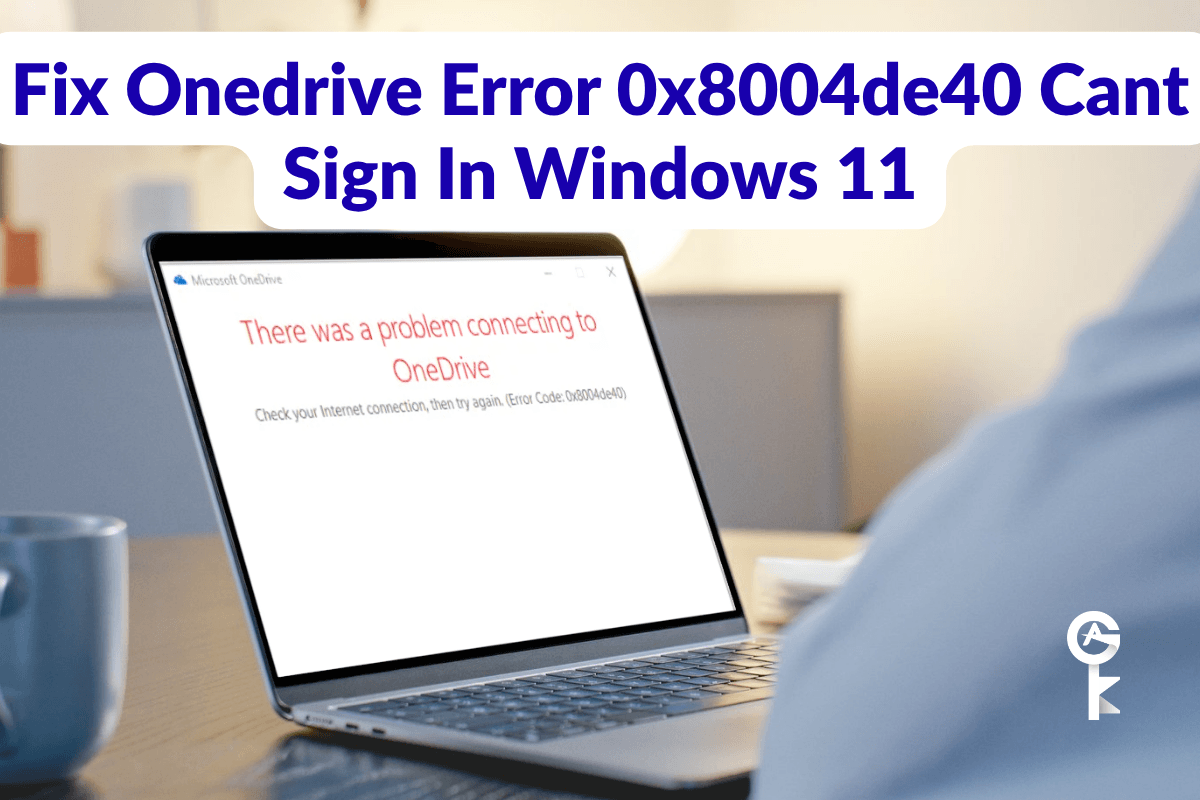
If you are struggling to sync your files because you need to Fix Onedrive Error 0x8004de40 Cant Sign In Windows 11, you are definitely not alone. This frustrating authentication error usually stops you right in your tracks, throwing up a login wall that refuses to budge no matter how many times you retype your password. As someone who has spent years troubleshooting stubborn Microsoft environments, I know how maddening it is when your cloud backups suddenly halt. Stick with me, and we will walk through the exact, native technical fixes to get your sync engine running smoothly again.
Table of Contents
Understanding Why This Error Happens
Before we start hammering away at your system with command-line tools, it helps to understand what code 0x8004de40 actually means. In short, it is a connectivity or authentication hiccup. Your local OneDrive client is reaching out to Microsoft cloud servers, but something along the network pipeline—or within your local TLS configuration—is blocking the handshake. Sometimes it is a lingering proxy setting, a corrupted local credential cache, or an outdated transport layer security protocol.
Microsoft provides some guidance on network troubleshooting through the official Microsoft support pages, but those generic guides often leave out the heavy-duty command-line interventions we need on Windows 11. Let us roll up our sleeves and tackle the network layer first.
Step 1: Flush Network Sockets and Reset Winsock
When dealing with stubborn connection drops, resetting your TCP/IP stack and Winsock catalog is always my go-to first move as a sysadmin. Corrupted DNS caches or damaged socket registries will block OneDrive authentication every single time. Open your terminal with administrative privileges to clear out the local networking cobwebs.
ipconfig /flushdns
nbtstat -r
netsh int ip reset
netsh winsock reset
Once you execute these commands, you must restart your Windows 11 machine for the network catalog rebuild to take full effect. Do not skip the reboot, as the network stack needs a clean slate to re-initialize your adapters.
Step 2: Enable TLS Protocols via Internet Properties
Modern Microsoft 365 cloud services require secure communication protocols, specifically TLS 1.2 and TLS 1.3. If your system has these disabled by an old group policy, security tweak, or third-party utility, OneDrive will fail to authenticate with error 0x8004de40. We can enforce these protocols directly through a quick registry injection or via the classic internet properties panel.
For a quicker method, let us use PowerShell to ensure that secure protocols are fully enabled on your operating system environment. You can review broader system requirements directly on the Microsoft Learn documentation portal for enterprise environments.
Set-ItemProperty -Path 'HKLM:\SOFTWARE\Policies\Microsoft\Windows\CurrentVersion\Internet Settings' -Name 'SecureProtocols' -Value 2688 -Type DWordAfter running this PowerShell cmdlet, your system will explicitly permit TLS 1.1 and TLS 1.2 connections required by modern background sync applications.
Step 3: Completely Reset the OneDrive App
If your network and security protocols check out, the local application binary or cache might be corrupted. Resetting the sync client forces it to clear its local state database and establish a completely fresh handshake with Microsoft servers. This is completely safe and will not delete your actual cloud files, though it might require a brief re-sync of your local folder structure.
Let us trigger the native executable reset switch directly from the Run dialog command line. Open up your terminal or run prompt and execute the following:
%localappdata%\Microsoft\OneDrive\onedrive.exe /resetKeep an eye on your taskbar after running this command. The OneDrive cloud icon should disappear for a minute or two and then reappear. If it does not start back up automatically after a few minutes, you can manually launch it by running the command below.
start %localappdata%\Microsoft\OneDrive\onedrive.exeStep 4: Clear Corrupted Windows Credentials
Windows 11 relies heavily on the Credential Manager to store authentication tokens for Microsoft Office and OneDrive. When these saved tokens expire awkwardly or become mismatched, you will hit a wall trying to sign back in. Wiping out the cached OneDrive credentials forces the app to prompt you for a brand-new login token.
You can wipe out any lingering generic credentials tied to OneDrive directly through the command line using the built-in credential manager utility.
cmdkey /list | findstr "OneDrive"If any targets show up containing OneDrive cached tokens, you can delete them by referencing their target names with the following syntax in an administrative command prompt:
cmdkey /delete:LegacyGeneric:target=MicrosoftOffice16:_Configurer
cmdkey /delete:MicrosoftAccount:target=adal::theuser@yourdomain.com
By clearing out these old tokens, resetting your network stack, and forcing a clean app initialization, you should find that your login window finally accepts your credentials without throwing error codes. Take a moment to log back into your account, and your files should begin synchronizing normally across your Windows 11 desktop environment once again.


