



Convert Rds Per User To Per Device Cals: Best Guide

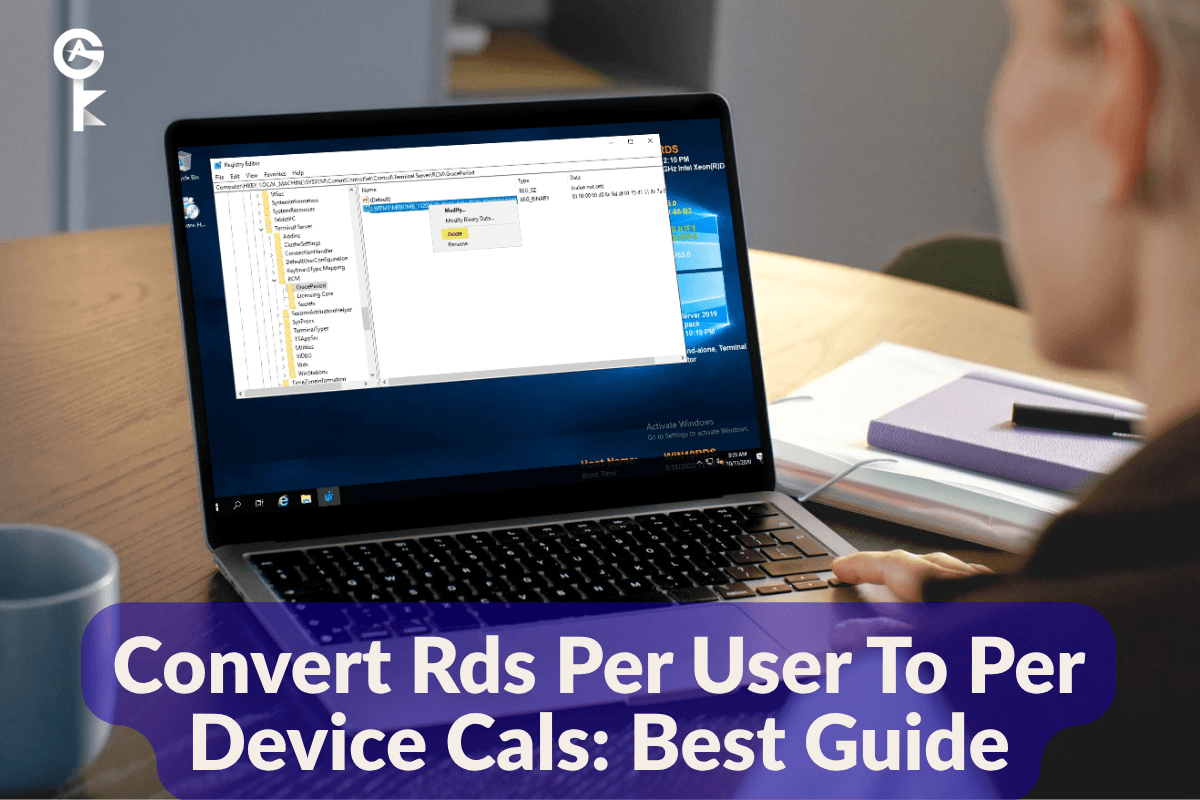
If you are an IT administrator staring at an unexpected licensing bottleneck, you probably need to know how to convert RDS per user to per device CALs to keep your remote desktop environment running smoothly. Changing the licensing mode on a Windows Server can feel like navigating a maze, especially since Microsoft does not offer a simple, one-click toggle in the graphical interface to swap user Client Access Licenses for device-based ones. Whether your company is shifting toward shared workstations, rotating shifts, or you simply need to realign with your current software inventory, getting this configuration right prevents abrupt lockout issues for your remote users.
Table of Contents
Understanding RDS Licensing Modes
Before jumping into command lines and registry hacks, it helps to understand how Microsoft tracks these licenses under the hood. Remote Desktop Services licensing models dictate how users connect to your session hosts. Per User CALs assign a temporary or permanent token to a specific Active Directory user account, allowing them to connect from any device. On the flip side, Per Device CALs attach a temporary certificate to the physical machine connecting to the server. If your organization changes its operational structure, you might find that you cannot simply convert RDS per user to per device CALs by clicking around the Remote Desktop Licensing Manager. The licensing database itself must be reissued or properly targeted with the correct CAL pack type.
When you install a new set of CALs, the Remote Desktop Licensing Manager tracks them independently based on their purchase agreement. If you currently have Per User CALs installed on your license server, simply purchasing Per Device CALs and dropping them in will not automatically migrate existing user allocations. You must ensure that the proper CAL type is active on the RD Session Host configuration level. For more detailed official documentation on managing these deployments, you can check out the Microsoft RDS Overview.
Preparing Your Environment and Purchasing CALs
Before you make any structural modifications to your server infrastructure, make sure you have the physical or digital paperwork for your new keys. You cannot magically change a user license into a device license without having the actual device CAL packs installed on your RD Licensing server. You will need to open the Remote Desktop Licensing Manager on your server and activate the new license packs using your Microsoft Clearinghouse activation wizard.
If you are looking to acquire valid, verified keys for your infrastructure expansion, you can easily secure them online. Make sure your licensing pool matches your organizational requirements before proceeding with the technical migration steps below.
Browse Microsoft Servers Licenses
Once your new device CALs are successfully installed on the licensing server, you are ready to point your RD Session Host servers to enforce the new device-based licensing model instead of the user-based model. For guidance on buying enterprise-compliant software, consult the official Microsoft Volume Licensing Service Center.
Modifying the Registry to Force the Change
The most reliable way to force your session host to switch its licensing mode is by directly editing the Windows Registry. Group Policy Objects can sometimes fail to apply this specific setting cleanly depending on your Active Directory structure, making a direct registry edit the preferred method for senior systems administrators. Open an elevated Command Prompt to back up your current registry keys or jump straight into PowerShell to update the licensing parameters.
To change the licensing mode to Per Device, you need to alter the LicensingMode DWORD value inside the Remote Desktop Policy registry hive. A value of 2 designates Per Device mode, while a value of 4 designates Per User mode. Run the following PowerShell command in an elevated prompt to set your server to Per Device mode:
Set-ItemProperty -Path "HKLM:\SYSTEM\CurrentControlSet\Control\Terminal Server\RCM\Licensing Core" -Name "LicensingMode" -Value 2Next, you also want to ensure that your specified license servers are correctly registered so that the session host knows where to pull the newly designated device CALs from. You can configure the license server names via the registry as well. Execute the following command to define your license server name, replacing servername with your actual licensing server hostname or IP address:
New-Item -Path "HKLM:\SYSTEM\CurrentControlSet\Services\TermService\Parameters\LicenseServers" -Force; Set-ItemProperty -Path "HKLM:\SYSTEM\CurrentControlSet\Services\TermService\Parameters\LicenseServers" -Name "SpecifiedLicenseServers" -Value "servername"Reconfiguring Licensing via PowerShell
If you manage multiple session hosts across a large farm, doing manual registry edits is tedious and prone to human error. Automating the task via WMI or CIM cmdlets built directly into Windows Server is a much faster route. You can query and update the RDS configuration using the Win32_TerminalServiceSetting class.
Run the following PowerShell script block to programmatically force the change across your local session host:
$obj = Get-WmiObject -namespace "root\CIMV2\TerminalServices" -class Win32_TerminalServiceSetting
$obj.ChangeMode(2)
After running this script, the session host will update its internal configuration profile. It is always a good practice to restart the Remote Desktop Services service to ensure the changes take effect immediately without needing a full system reboot during production hours.
Restart-Service TermService -ForceVerifying Your New Configuration
Once you have applied your registry tweaks and restarted the necessary services, you need to verify that your session host is actually issuing Per Device CALs rather than throwing licensing errors down the road. You can use the Remote Desktop Licensing Diagnoser tool built into Windows Server, or run a quick diagnostic check using PowerShell to review the active policies.
To pull the active licensing configuration directly from the command line and verify that your attempt to convert RDS per user to per device CALs was successful, execute this command:
Get-WmiObject -namespace "root\CIMV2\TerminalServices" -class Win32_TerminalServiceSetting | Select-Object LicensingMode, @{N='Mode';E={if($_.LicensingMode -eq 2){'Per Device'}else{'Per User'}}}If the output returns Per Device, your configuration is successfully applied. Keep an eye on your Event Viewer under the TerminalServices-Licensing channels for any warning events over the next 48 hours to ensure clients are checking out device tokens smoothly.


