



Best Guide to Fix Event Id 1130 Terminal Services Licensing

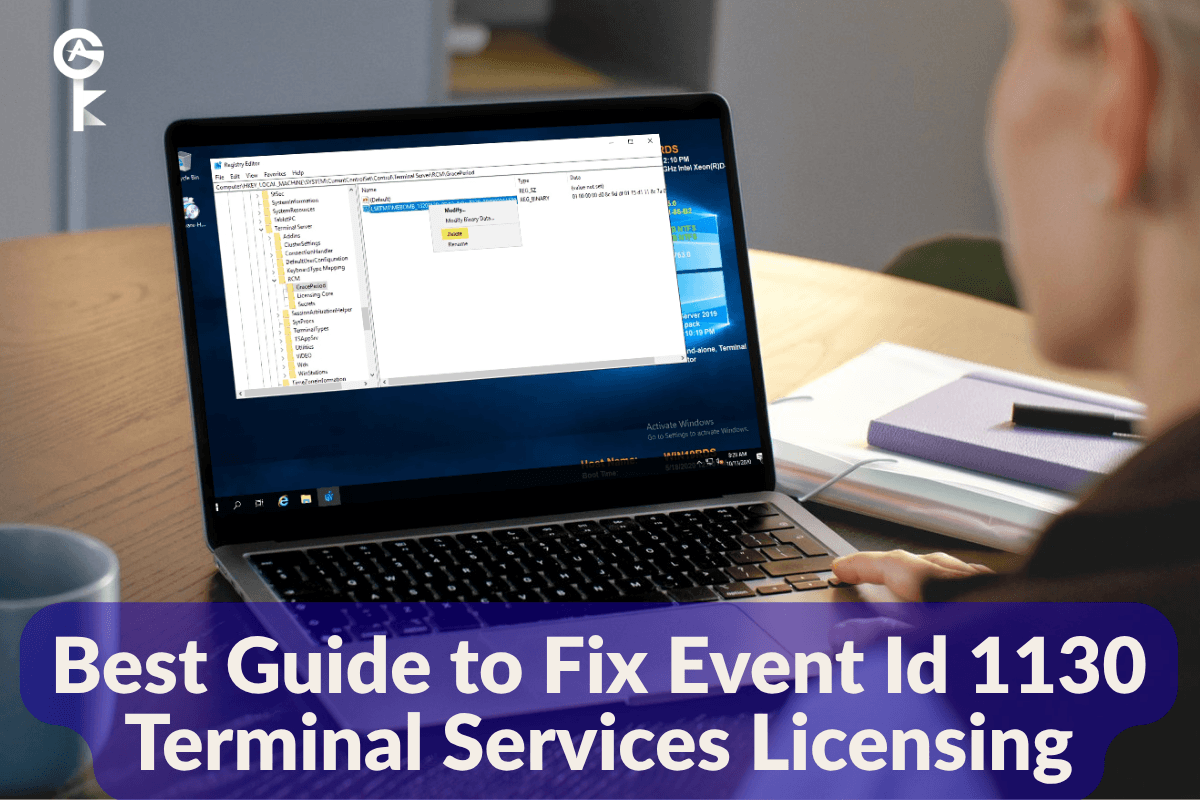
If you are trying to Fix Event Id 1130 Terminal Services Licensing errors on your Windows Server network, you know how quickly a simple warning in the Event Viewer can snowball into a full-blown user lockout. When Remote Desktop Services stops talking to your licensing server, nobody gets in, and your phone starts ringing off the hook. As a systems administrator who has wrestled with Remote Desktop Licensing more times than I care to admit, I put together this comprehensive guide to help you track down the root cause and get your environment healthy again without tearing your hair out.
Table of Contents
Understanding the Root Cause
Event ID 1130 usually pops up in your Event Viewer logs when the Remote Desktop Session Host server cannot communicate with a valid Remote Desktop License Server, or when the license server itself is out of available Client Access Licenses. Sometimes, network routing issues, expired grace periods, or corrupt database files are to blame. Before you start changing production configurations, it is always a good idea to brush up on official documentation like the Microsoft RDS CAL Documentation to ensure your deployment model matches your organization’s licensing agreements.
Verifying Remote Desktop Licensing Roles
The very first step in our troubleshooting journey is verifying that your Session Host knows where to find its licensing server. If your license server was recently migrated or its IP address changed, the session host is likely looking in the wrong place. We can check and configure the licensing mode and server name directly from an elevated command prompt.
Run the following command to check your current remote desktop licensing configuration and ensure your servers are pointing to the right destination:
reg query "HKLM\SYSTEM\CurrentControlSet\Control\Terminal Server\RCM\Licensing Core" /v LicensingModeIf you need to forcefully point your session host to a specific license server using PowerShell, you can execute a quick script to update the registry keys reliably across your infrastructure. If you are scaling up your deployment and need to acquire authentic activation keys for your environment, you can Browse Microsoft Servers Licenses to find verified products that fit your exact server requirements.
Checking Active Directory and Permissions
In an Active Directory environment, Terminal Services relies heavily on proper permissions within the domain to validate licensing tokens and communicate with domain controllers. When permission boundaries are messed up, the license server fails to authorize client connections, throwing errors left and right. You should cross-reference your network policies with the official guidelines found on the Microsoft Tech Community forums to see if other administrators are hitting similar domain authorization snags.
To verify basic network connectivity and ensure your licensing server can successfully reach a functional domain controller, run a quick LDAP query or test port connectivity using PowerShell.
Test-NetConnection -ComputerName YourDomainController -Port 389Applying Registry and Group Policy Fixes
Sometimes the licensing mechanism gets stuck in a loop, failing to recognize valid CAL packs even when they are properly installed. Overriding the automatic discovery mode and hardcoding the license server name via the registry often forces the system out of its broken state. Be careful when editing production registries, and always make a backup first.
You can use this command to set the desired licensing mode value to Per Device (2) or Per User (4) depending on your setup:
reg add "HKLM\SYSTEM\CurrentControlSet\Control\Terminal Server\RCM\Licensing Core" /v LicensingMode /t REG_DWORD /d 2 /fRebuilding the Licensing Database
If you have tried everything else and Event ID 1130 refuses to go away, the local Remote Desktop licensing database file (TLSPKR.edb or licsrv.mdb) might be corrupt. Rebuilding this database clears out old, corrupted token entries and allows you to reactivate your license packs cleanly. You will need to stop the Remote Desktop Licensing service before messing with these files.
Stop the licensing service gracefully from your command line using this command:
net stop termservlicensingOnce the service is safely stopped, navigate to your system directory, rename the old database backup folder to force a fresh initialization, and then start the service back up. Keeping your servers patched and properly licensed ensures that unexpected downtime stays at an absolute minimum for your end users.
net start termservlicensing


