



How To Fix Microsoft Office Unlicensed Product Error

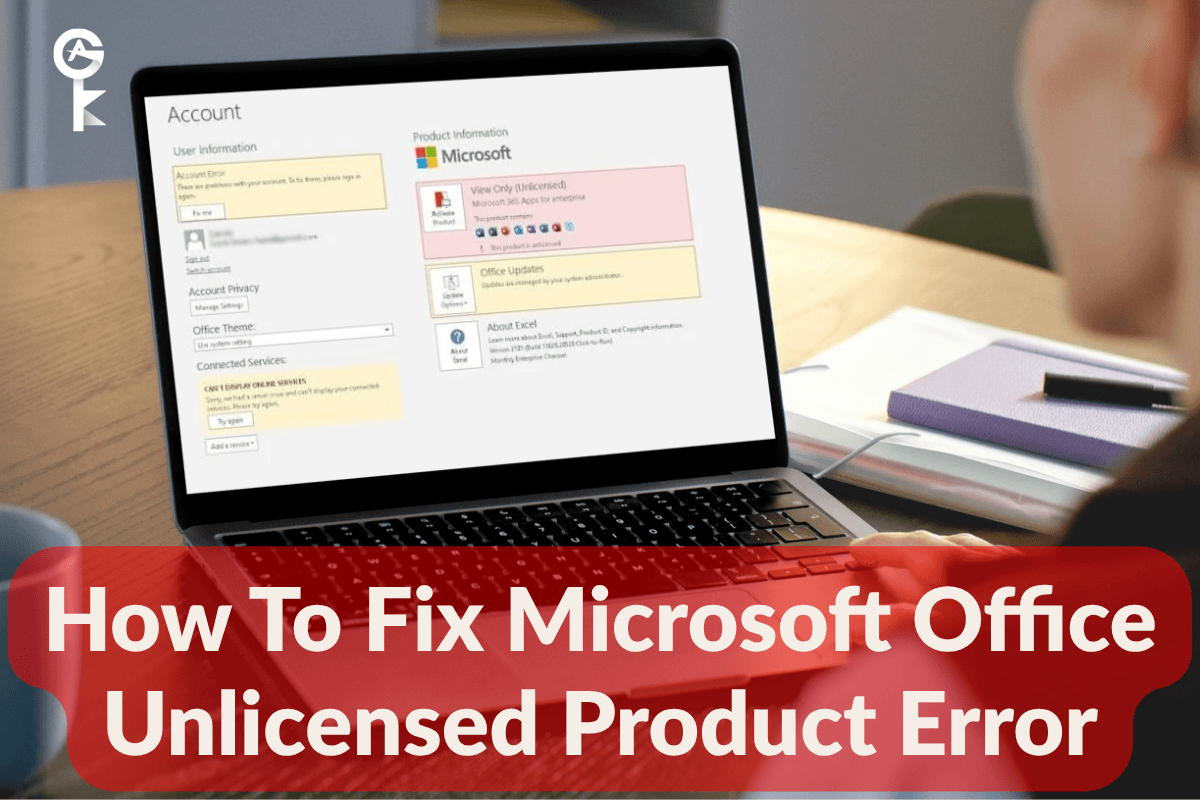
If you have booted up your computer this morning only to be greeted by a glaring red banner across your favorite productivity apps, you are likely wondering how to fix Microsoft Office unlicensed product error situations before an important deadline hits. Nothing halts a busy workday faster than suddenly losing your editing privileges, seeing your ribbon grayed out, or getting pop-ups demanding activation. As a senior IT technician who has walked hundreds of users through this exact headache, I want to reassure you that this issue is almost always fixable without having to reinstall your entire operating system. The root cause usually boils down to a corrupted token cache, an expired subscription, a lingering ghost installation from a previous trial version, or a failure to connect securely to the activation servers.
Table of Contents
Identifying the Root Cause
Before we dive straight into executing commands, it helps to understand why your software suddenly forgot it was activated. Often, users buy a new laptop that comes pre-installed with a 30-day trial of Microsoft 365, but they actually own a permanent license for Office Home and Student. When the trial expires, Office locks up, getting confused about which license takes priority. Another frequent culprit is a network glitch that blocked Office from checking in with the activation servers. You can learn more about account verification guidelines directly through the Microsoft Support Center.
Running Office as an Administrator
Sometimes Office simply lacks the necessary file system permissions to write its activation token to your local registry. The quickest sanity check is to force the application to run with elevated privileges. Close all of your open Word, Excel, or PowerPoint windows. Next, use your Windows search bar to locate your preferred Office application, right-click its icon, and select Run as administrator. If a User Account Control prompt appears, click Yes. Often, doing this just once lets the application successfully update its license status in the background.
Verifying Windows Services
Windows relies on background services to handle software licensing and cryptographic validations. If one of these critical services is accidentally disabled, your system cannot verify your software. We need to ensure that the Microsoft Office Click-to-Run service is running smoothly. You can check and restart this service instantly by opening an elevated command prompt. Copy the command below, paste it into your terminal, and press enter to ensure the service is configured for automatic startup.
sc config ClickToRunSvc start= autoFollowing that command, make sure you start the service immediately if it is currently stopped by executing the next command in your administrative terminal window.
net start ClickToRunSvcClearing Office Credentials via Command Prompt
Corrupted login credentials stored in your Credential Manager frequently trigger licensing errors. If your Microsoft account password recently changed, Office might be trying to authenticate with outdated tokens. We can manually navigate to the Office installation folder and use the Software Protection Platform script to inspect and clean up lingering licenses. First, you must close all Office applications completely. Then, open your Command Prompt as an administrator and navigate to your Office directory based on your system architecture. For standard 64-bit Office on a 64-bit operating system, use the path-checking command below.
cd /d "%ProgramFiles%\Microsoft Office\Office16"If you are running a 32-bit version of Office on a 64-bit operating system, the file path will be slightly different. You will want to target your Program Files (x86) directory instead to ensure the script targets the correct binaries. Run this alternative directory navigation command if the previous one returned an error.
cd /d "%ProgramFiles(x86)%\Microsoft Office\Office16"Resetting Product Keys and Office State
When multiple conflicting product keys are installed on a single machine, Office gets terribly confused. To wipe the slate clean, we can use the ospp.vbs script to display installed product keys and purge the bad ones. While still inside your Office16 directory in the elevated command prompt, execute the status query command to view the last five characters of your installed product keys.
cscript ospp.vbs /dstatusLook through the output on your screen to find any trial licenses or old keys that shouldn’t be there. You will see a line displaying the last five characters of the installed product key. Take that five-character string and plug it into the uninstallation command below to safely remove the conflicting license from your system. For further reading on deployment and volume activation management, check out the official Microsoft Learn Documentation.
cscript ospp.vbs /unpkey:XXXXXOnce you have successfully purged the conflicting keys, open any Office application like Word. It will prompt you to log in with your valid Microsoft account or enter a fresh, genuine product key. By clearing out the corrupted cache and resetting the license state, your applications will rebuild a clean activation token, permanently resolving your issue and letting you get back to work in peace.


