



Fix We Cant Connect To Your Account Office 365 Error

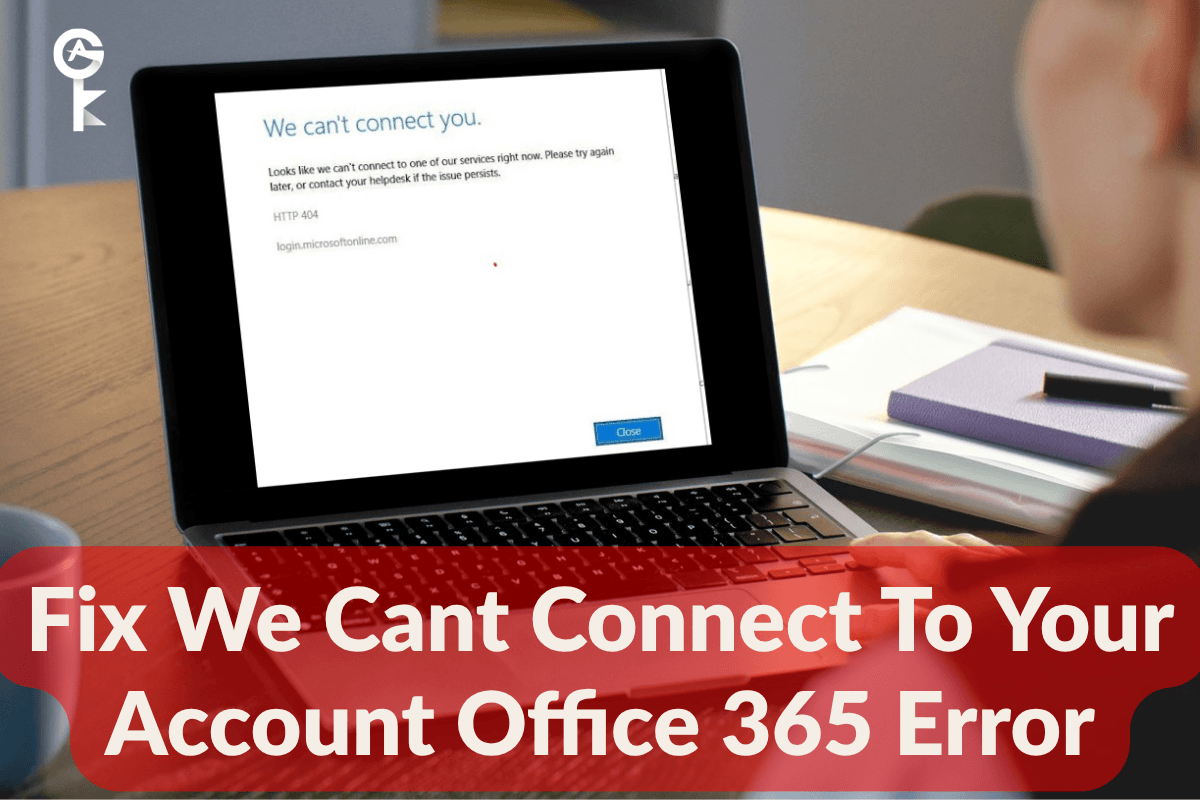
If you are struggling to fix we cant connect to your account office 365 error, you are definitely not alone on this journey. Dealing with Microsoft Office authentication loops can completely derail your workday, leaving you staring at frustrating login screens just when you need to get things done. As an IT tech, I see this issue all the time when user credentials get out of sync with Windows Credential Manager or local token caches. Let us roll up our sleeves and walk through the exact steps to clear out the corruption, restore your login flow, and get your Microsoft apps talking to the cloud again.
Table of Contents
Understanding the Root Cause
Before we start running commands, it helps to understand why your system throws this specific authentication hiccup. Usually, your local Windows session holds onto an expired authentication token or a corrupted credential profile. When Word, Excel, or Outlook tries to silently refresh your subscription status, the mismatch causes a complete handshake failure. You can read more about how identity models interact with desktop apps on the official Microsoft 365 Administration Guide.
Step 1: Clear Windows Credentials
The quickest fix for most users involves purging old Office tokens stored safely inside the Windows Credential Manager. Sometimes Windows hangs onto an old password long after you have updated your Microsoft account details. Let us clear out those stale entries instantly using an elevated command prompt.
cmdkey /listTake note of any target entries that mention MicrosoftOffice16 or OfficeLegacy. You can wipe these out directly to force your applications to prompt you for fresh login credentials. Run the following command in your administrative command prompt to clear the slate:
for /f "tokens=2" %i in ('cmdkey /list ^| findstr Target') do cmdkey /delete:%iStep 2: Reset Office Activation State
If clearing the local cache does not entirely solve the fix we cant connect to your account office 365 error, we need to dive deeper into the Office Software Protection Platform. You can reset your local license state by running a series of specialized scripts provided natively with your installation. For additional troubleshooting insights, check out the official Microsoft Support Hub.
First, navigate to your Office program folder and use the ospp.vbs script to identify your current license status. Open up PowerShell as an administrator and execute the following directory switch and status query:
cd "C:\Program Files\Microsoft Office\Office16" & cscript ospp.vbs /dstatusSometimes your hardware configuration requires a brand new license token. If your product key or subscription is stuck in a loop, you can clear out the cached product keys entirely before trying to sign back in. Run this administrative command to wipe the slate clean:
cscript ospp.vbs /unpkey:XXXXXBrowse Microsoft Licenses
Step 3: Flush DNS and Reset Network Sockets
Network routing issues or corrupt local DNS caches can prevent your desktop apps from reaching Microsoft authentication servers. When SSL handshakes fail due to bad routing tables, Office assumes your internet is down and throws a connection error. Let us completely refresh your local networking stack.
ipconfig /flushdnsNext, you will want to reset your TCP/IP stack and Winsock catalog to wipe away any lingering corruption from VPN software or third-party firewalls. Execute these two commands back-to-back in your command prompt:
netsh int ip reset & netsh winsock resetStep 4: Clean Reinstall via Microsoft Support
If you have tried all the steps above and you are still seeing the fix we cant connect to your account office 365 error pop up every time you open Outlook or Word, your core installation files might be severely damaged. At this point, running a comprehensive removal tool is your best bet for a fresh start.
You can download the official Microsoft Support and Recovery Assistant utility, or use a quick PowerShell script to terminate any hanging Office background processes before running a fresh installer. Fire up PowerShell and run this quick cleanup command:
Stop-Process -Name "winword","excel","outlook","onenote" -Force -ErrorAction SilentlyContinueRestart your computer after running this command, log back into your machine, and download a fresh installation package from your dashboard. Your Office apps will now provision a brand new token cache, allowing you to breeze through the sign-in prompt without any further connection roadblocks.


