



Fix Microsoft 365 Subscription Notice Yellow Banner (Step-by-Step)

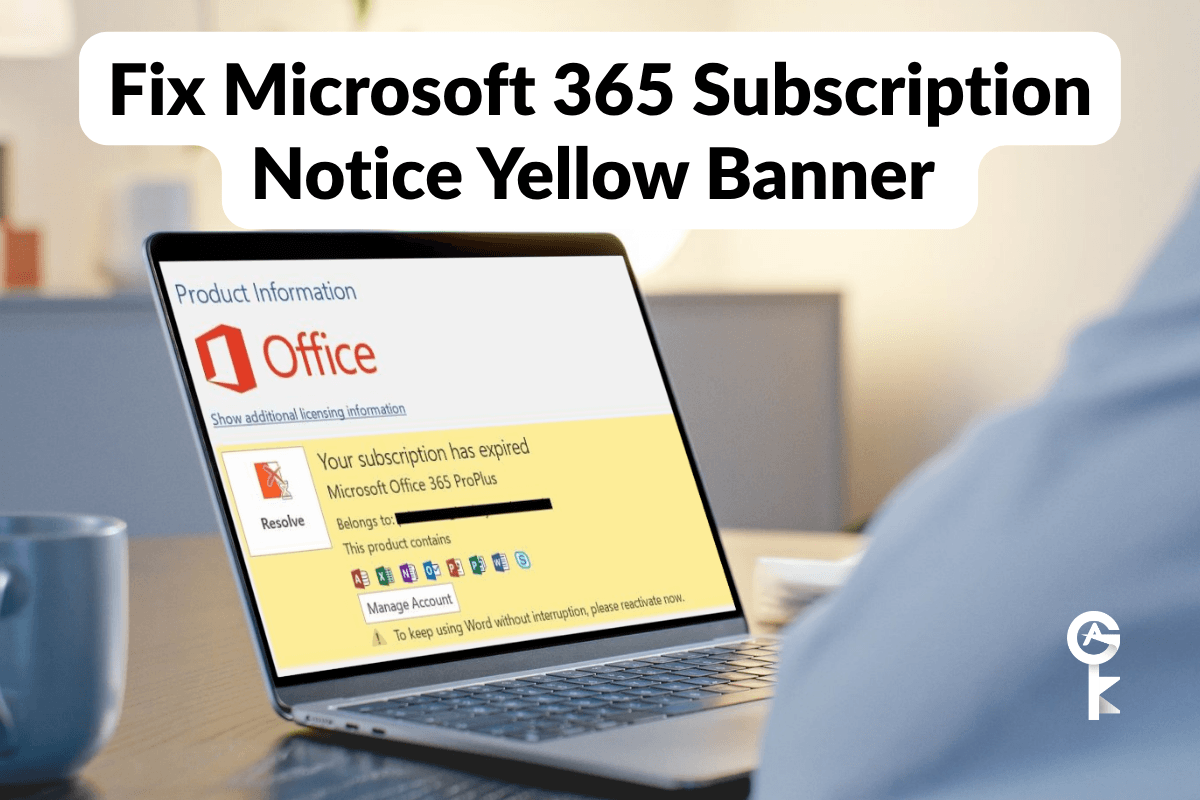
If you are trying to Fix Microsoft 365 Subscription Notice Yellow Banner errors on your Windows workstation, you are definitely not alone. Dealing with persistent yellow warning banners across Word, Excel, and Outlook can grind your daily productivity to a complete halt, especially when you know your account is fully paid and active. As a senior IT technician who has triaged hundreds of Office deployment headaches, I know firsthand how frustrating it is when a local Office installation loses touch with Microsoft’s activation servers. Let us walk through the exact, native troubleshooting steps to clear out credential caches, reset licensing states, and get your desktop apps running smoothly again.
Table of Contents
Understanding the Root Cause
Before we start running commands, it helps to understand why that stubborn notification appears in the first place. Microsoft 365 relies heavily on a background token-refresh mechanism handled by the Windows Account Manager and specific identity broker plugins. When these tokens expire, get corrupted, or fail to sync with the cloud due to network hiccups, Office drops into reduced functionality mode. You can read more about how Microsoft handles cloud identity and modern authentication via the official Microsoft Entra Documentation. Often, simply restarting the service isn’t enough, and we need to forcefully purge the cached authentication tokens from your local machine.
Step One: Clear Windows Credential Manager
Corrupted cached credentials are the number one culprit behind recurring subscription warnings. Office apps hold onto old login tokens tenaciously, which causes authentication loops. We need to wipe those old Office 16 credentials clean using an elevated command prompt. Make sure you close all of your Office applications before running this command, otherwise, the cache files will remain locked by active processes.
cmdkey /listRunning that command lists your stored credentials. Look specifically for any entries starting with MicrosoftOffice16. To delete those targets programmatically without clicking through the graphical Credential Manager interface, you can target their specific target names. If you prefer a completely fresh start for your licensing, you may also want to check out the guidance available on the Microsoft Support Center regarding unlicensed product errors.
Step Two: Reset Office Activation State
When clearing credentials fails to clear the yellow warning bar, your next line of defense involves the Office Software Protection Platform script, known as OSPP.vbs. This script allows us to inspect current product keys and strip away broken enterprise or consumer licenses so you can sign in fresh. Open up your Command Prompt with administrator privileges and navigate to your Office installation directory. Depending on whether you are running a 32-bit or 64-bit architecture, your path will typically reside in one of the standard Program Files directories.
cd /d "%ProgramFiles%\Microsoft Office\Office16"If you receive an error indicating the path does not exist, try checking your x86 program files directory using the command line. Once you are successfully in the correct directory containing the ospp.vbs script, you can display the installed product key statuses to see what lingering data might be causing your subscription notice issues.
cscript ospp.vbs /dstatusReview the output for the last five characters of the installed product keys. You can then remove those old or conflicting keys using the following command structure, replacing the placeholder with your actual displayed characters to clear out the corruption.
cscript ospp.vbs /unpkey:#####If your current software licenses are bound to a corporate device or a retail key that needs refreshing, sometimes upgrading your setup or purchasing a verified digital license key is the fastest path forward. Take a moment to explore our recommended software options if your current enterprise channel continues to throw licensing flags.
Step Three: Repair Your Office Installation
If clearing the credentials and resetting the OSPP tokens still leaves you staring at that frustrating warning banner, the core Click-to-Run installation files on your local drive may be damaged. A full online repair replaces all core application binaries while preserving your local user files, customization settings, and documents. You can trigger this process cleanly via PowerShell without digging through the classic Control Panel menus.
Get-CimInstance -Namespace root\cimv2\security\microsoftvolumelicensing -ClassName MSFT_VolumeLicensingFor a quicker automated GUI repair kick-off, you can execute the configuration tool directly from your run dialog by inputting the application maintenance executable path. Once the repair wizard pops up on your screen, select the Online Repair option for the most thorough system refresh. Give your computer a complete restart after the repair process finishes, open any Office application like Word, and sign back in with your active Microsoft account credentials to restore full functionality.


